
Audience Management
This guide explains how audiences are managed on the Martailer platform.
Audience Management & Data Activation
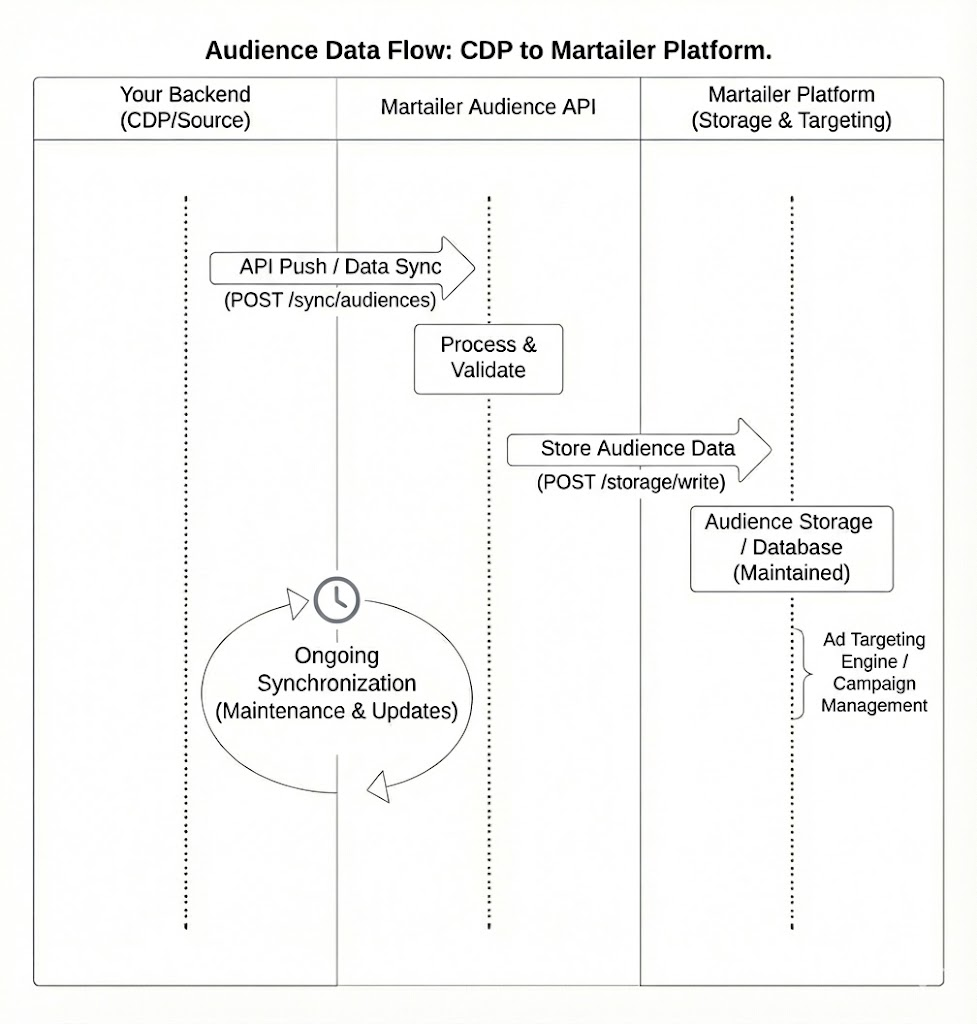
In the Martailer ecosystem, Audiences are the mechanism for monetizing and activating your first-party data. Unlike opaque ad networks, our architecture gives you full control: you define the segment via API, you set the price (Markup) in the UI, and you explicitly share it with specific vendors.
The Data Lifecycle
- Push: You sync segments from your CDP/Data Warehouse using the API.
- Monetize: You set a markup percentage in the Audience Manager.
- Share: You grant specific vendors access to these segments.
- Activate: Vendors select these audiences when creating campaigns.
Part 1: API Reference
Use these endpoints to programmatically sync your user segments.
Base URL: https://api.martailer.com
Authentication: All requests require the x-api-key header.
1. Create Audience
Defines a new audience container. You must provide your own audienceId (e.g., the ID from your internal CDP), which acts as the primary key for future updates.
| Method | Endpoint |
|---|---|
POST | /v1/audiences |
Request Body Parameters:
| Parameter | Type | Required | Description |
|---|---|---|---|
audienceId | string | Yes | Unique ID from your system (e.g., "seg_001"). |
name | string | Yes | Display name visible to vendors (e.g., "Sports Fans"). |
description | string | No | Internal notes about the segment. |
curl --request POST \
  --url [https://api.martailer.com/v1/audiences](https://api.martailer.com/v1/audiences) \
  --header 'x-api-key: <YOUR_API_KEY>' \
  --header 'content-type: application/json' \
  --data '{
    "audienceId": "seg_sports_001",
    "name": "Sports Enthusiasts",
    "description": "Shoppers who bought sports gear in last 30d"
  }'
2. Add Users to Audience
Populates the audience with users. This endpoint supports batching and can be called repeatedly to add new users to an existing segment.
| Method | Endpoint |
|---|---|
POST | /v1/audiences/{audienceId}/users |
Request Body Parameters:
| Parameter | Type | Required | Description |
|---|---|---|---|
identifiers | array | Yes | List of SHA-256 hashed email addresses. |
Data Privacy Requirement User emails must be trimmed of whitespace and converted to lowercase before applying the SHA-256 hash.
curl --request POST \
  --url [https://api.martailer.com/v1/audiences/seg_sports_001/users](https://api.martailer.com/v1/audiences/seg_sports_001/users) \
  --header 'x-api-key: <YOUR_API_KEY>' \
  --header 'content-type: application/json' \
  --data '{
    "identifiers": [
      "5e884898da28047151d0e56f8dc6292773603d0d6aabbdd62a11ef721d1542d8",
      "a3b84898da28047151d0e56f8dc6292773603d0d6aabbdd62a11ef721d154299"
    ]
  }'
3. Delete Users from Audience
Removes specific users from a segment (e.g., if a user opts out or no longer qualifies).
| Method | Endpoint |
|---|---|
POST | /v1/audiences/{audienceId}/users/delete |
curl --request POST \
  --url [https://api.martailer.com/v1/audiences/seg_sports_001/users/delete](https://api.martailer.com/v1/audiences/seg_sports_001/users/delete) \
  --header 'x-api-key: <YOUR_API_KEY>' \
  --header 'content-type: application/json' \
  --data '{
    "identifiers": [
      "5e884898da28047151d0e56f8dc6292773603d0d6aabbdd62a11ef721d1542d8"
    ]
  }'
4. Get List of Audiences
Retrieves all audiences created under your account.
| Method | Endpoint |
|---|---|
GET | /v1/audiences |
curl --request GET \
  --url [https://api.martailer.com/v1/audiences](https://api.martailer.com/v1/audiences) \
  --header 'x-api-key: <YOUR_API_KEY>'
5. Delete Audience
Permanently deletes an audience container and all its associated users.
| Method | Endpoint |
|---|---|
DELETE | /v1/audiences/{audienceId} |
curl --request DELETE \
  --url [https://api.martailer.com/v1/audiences/seg_sports_001](https://api.martailer.com/v1/audiences/seg_sports_001) \
  --header 'x-api-key: <YOUR_API_KEY>'
Part 2: Platform Workflow (UI)
Once the data is synced via the API, use the Audience Manager to monetize and share it.
Step 1: Set Markup
The API defines the content of the audience, but the UI defines the value.
- Go to Audience Manager.
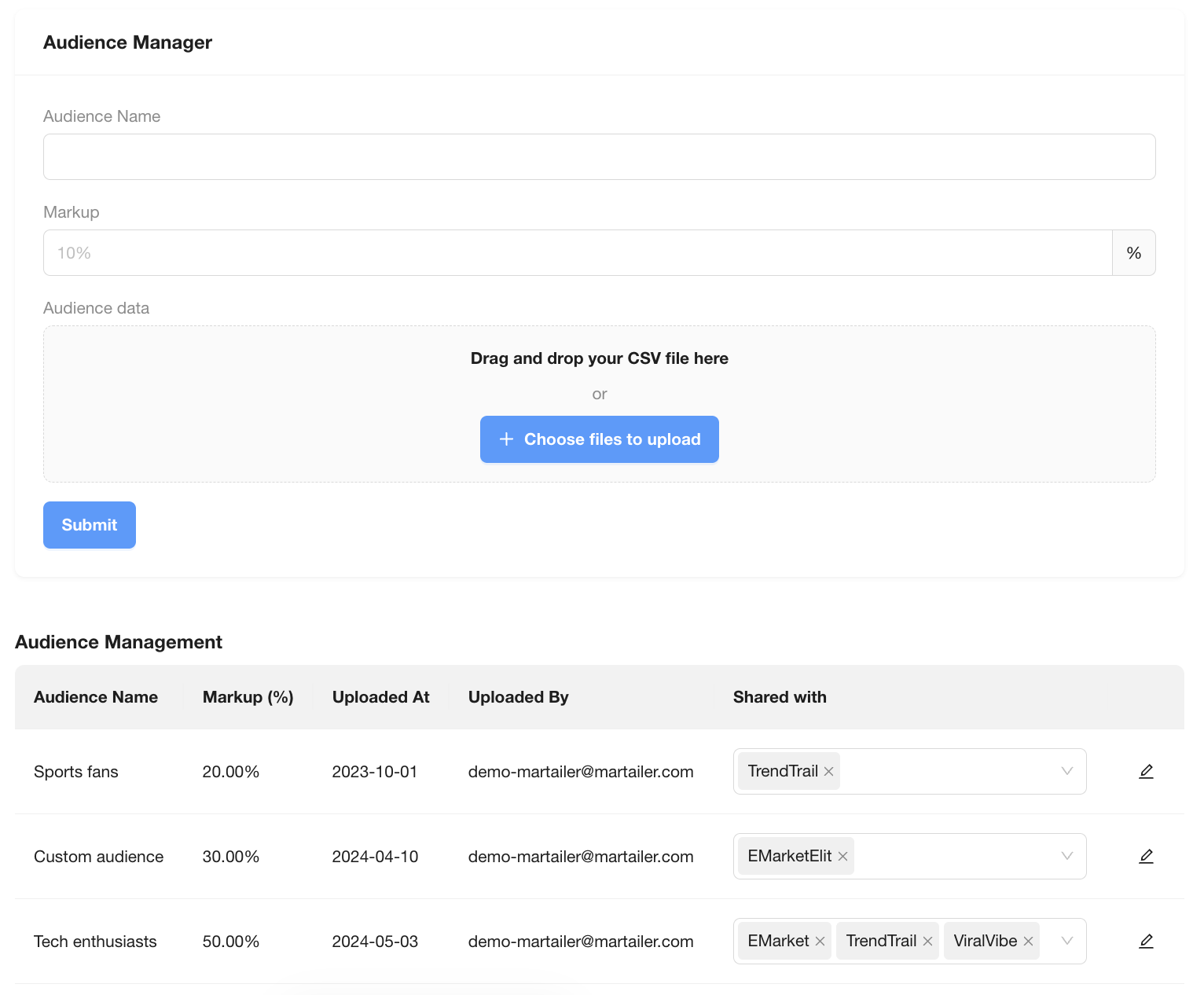
- Locate your audience (synced from API).
- Set the Markup (%). This is the fee added to vendor bids when they target this audience.
-
Example: A 20% markup means a €1.00 bid becomes €1.20 cost to the vendor, with the premium attributed to you.
-
Step 2: Share with Vendors
Audiences are private by default. To allow a vendor to target an audience, you must explicitly share it.
-
In the Audience Management list, find the Shared with column.
-
Select the vendors (e.g., TrendTrail, EMarket) who should have access.
Step 3: Activation (Vendor View)
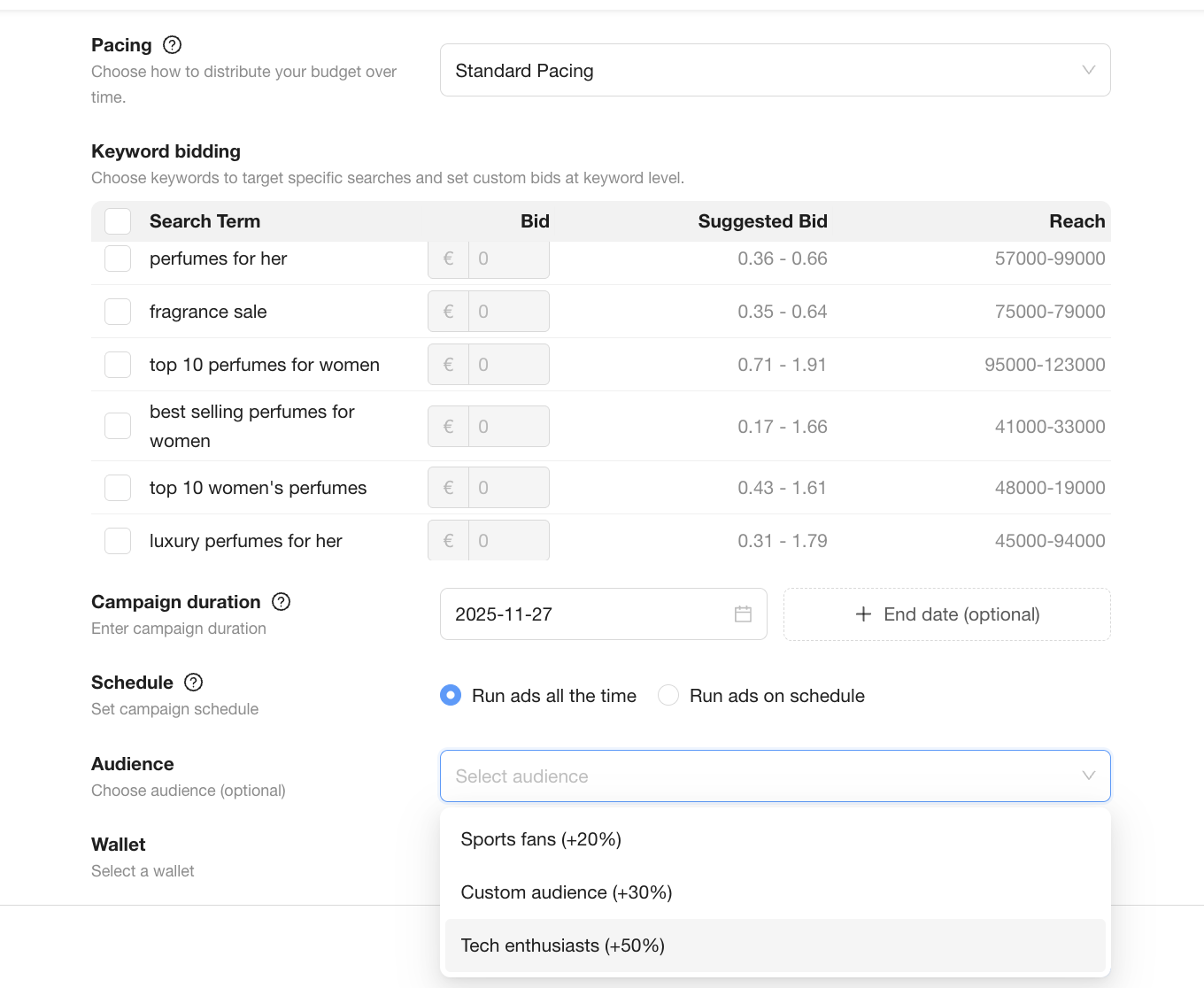
Once shared, the vendor can select the audience in their Campaign Creation flow.
-
Vendor navigates to Create Campaign.
-
Opens Advanced Settings.
-
Selects the audience from the Audiences dropdown.
Updated 18 days ago